Last week, I wrote a tutorial about how to get a 3G/4G cellular modem working on my Android/BeagleBoard setup. The next question (after everything works) is, how can I get this running automatically every time I boot up my Android device?
Boot scripts are nothing too fancy, and anyone with some basic Linux or Android experience can navigate this process pretty easily. But I always find it helpful to have the actual scripts written out. As a beginner, it’s a great way to figure out what the commands actually mean, and as an advanced developer, it’s a huge timesaver to copy and paste what’s already been done.
As a quick recap, I'm running all of this off my BeagleBoard xM, BeagleTouch, and Android Ambrosia SD card/image. I decided to use a T-Mobile 4G Rocket 3.0 USB cellular modem, but any USB cellular modem should work, with some tweaks to the vendor/product ID as well as the chat script (more on that in the previous post).
Outline the process
Looking through the original 3G/4G cellular modem integration process, I needed to do 4 things:
2) Execute usb_modeswitch using the correct usb_modeswitch.conf config file
3) Once modeswitch was successful, install usbserial.ko module to the correct vendor and product ID for the device
4) Execute chat script using pppd command Wrap up relevant components into a script
I created a file called init_cellular_pppd.sh, which contains the relevant content and commands to create the usb_modeswitch.conf file as well as the dialtest.chat script. #!/system/bin/sh #This is a wrapper script to enable cellular wireless TAG="Cellular" # # echo usb modeswitch config # echo_modeswitch_conf_zte() { echo "$TAG building modeswitch config" cat > /system/etc/usb_modeswitch.conf << EOF
You’ll find init.rc in the root folder on your Android device.
I placed the init_cellular_pppd.sh script in /system/etc/ppp, though it could technically go anywhere – as long as it’s being called in the right location, and the files it generates are going to the right places as well.
Then I just added these two lines to Android’s init.rc bootup script: service cellular_up /system/bin/logwrapper /system/xbin/busybox sh -c /system/etc/ppp/init_cellular_pppd.sh oneshot
This ensures that I execute init_cellular_pppd.sh every time I boot, which in turn generates the files I need and executes the commands required to have a fully functional 3G/4G cellular connection every time I boot up my Android device, provided I have the modem plugged in. In my last blog post, I cover which parameters you’ll want to tweak if you’re using a different modem or cellular provider, but if you have any questions or suggestions, I’d love to hear it. Email me at justin@liquidware.com or follow me on twitter @liquidware
A lot of folks have been asking me about this one, so I figured it’s about time to pull together my notes on the tutorial and get started…
In this case, I used an Android Ultimate Pro Kit, which runs Android 2.3.4 on the BeagleBoard xM/BeagleTouch/BeagleJuice, 2nd Gen. Note: There’s a much sleeker (beta) way to get cell modems running in Android with the new PPP widget from Draisberghof. I haven’t tried it out yet, and hooking up modems the old-fashioned way helped me learn a few useful tips and tricks in navigating ADB, so I’m writing it all out here. Enjoy! Hardware I used
1 BeagleBoard xM
1 BeagleTouch
1 BeagleJuice, 2nd Gen (optional – a 5V power supply works fine too)
1 Android Ambrosia SD card
1 Linux or Mac computer (cygwin for Windows could also do the job, with a little bit of toolchain setup. I used a dedicated Ubuntu EeePC)
1 T-mobile Rocket 3.0 4G laptop stick (but most will work – see below)
1 Type B-mini USB cable for connecting the computer to Amber Software I used Android SDK with Android Debug Bridge
Linux terminal (Asus Eee PC is *perfect* for this) This tutorial assumes that you already have Android SDK with Android Debug Bridge set up, and that you’re communicating to the BeagleBoard/Android device from a Terminal program. Connecting your Android device
1. Switch on your BeagleJuice, 2nd Gen to power on the Android Ultimate Pro Kit.
2. Once the BeagleBoard is booted into Android, plug in a USB cable from the Linux terminal to the BeagleBoard’s OTG type B-mini port.
3. Open up Terminal in Linux.
4. I have the Android SDK and Android Platform Tools installed, so I can access Android Debug Bridge right from the prompt. The first thing I do is make sure my device is connected by typing: adb devices
A list of connected and available Android devices should come up. Tools you’ll need on the Android device
Most USB 3G/4G cellular modems are actually several “devices” rolled into one – the most notable being some form of onboard data storage.
USB_ModeSwitch is a fantastic utility that essentially does the heavy lifting of separating all these devices, so we can talk to the modem over USB serial directly.
From your working directory, push the usb_modeswitch application to /system/xbin/ on your Android device: adb push usb_modeswitch-1.1.9-arm-static /system/xbin/usb_modeswitch
6. Download the usbserial.ko kernel module from the Liquidware site. The reason I have it set up as a separate module is so that we can install usbserial as the driver for our modem, which is necessary to communicate. Then push usbserial.ko to your Android device: adb push usbserial.ko usbserial.ko
This will put the usbserial.ko file in the root folder on your Android device, which is fine for our purposes.
We’ll create the usb_modeswitch config file you’ll need later. Find your modem identification information
7. Go into Android shell: adb shell
Now you can issue commands as if you’re in a terminal application on the Android device.
8. To see details about attached USB devices, first mount the usbfs file system. mount -t usbfs usbfs /proc/bus/usb
Now type in: cat /proc/bus/usb/devices
You should see a list of devices appear. Each USB device will have a Vendor ID and a Product ID. This detailed information also clues you in by telling you what Driver the USB device is currently using.
The one I’m looking for is the T-Mobile Rocket 4G, made by ZTE. Three relevant pieces of information:
Vendor=19d2
ProdID=2000
Driver=usb-storage
Each device has a vendor and product code identifier. The Driver is “usb-storage”, meaning that the composite modem is recognized as a USB mass storage device. Not very useful for our purposes. That’s where USB ModeSwitch comes in. You’ll tell USB ModeSwitch to send a special string of characters, which then splits the composite device into 6 independently communicating USB serial devices – one of which is our modem.
Write down your Vendor and Product ID, as well as your Manufacturer, Product, and SerialNumber info. These will all be helpful in finding the correct string that you’ll need to send to the modem via ModeSwitch.
7. In order for USB ModeSwitch to run properly, you’ll need to create USB modeswitch config file in the right format that has the correct string of characters. I started by looking on Draisberghof’s extensive list of device references. For the T-Mobile Rocket 4G 3.0 by ZTE, copy the following text into gedit on your Linux terminal, and create a file called usb_modeswitch.conf ######################################################## # ZTE devices DefaultVendor= 0x19d2 DefaultProduct= 0x2000 TargetVendor= 0x19d2 TargetProductList="0001,0002,0015,0016,0017,0031,0037,0052,0055,0063,0064,0066,0091,0108,0117,0128,0157,2002,2003" MessageContent="5553424312345678000000000000061e000000000000000000000000000000" MessageContent2="5553424312345679000000000000061b000000020000000000000000000000" MessageContent3="55534243123456702000000080000c85010101180101010101000000000000" NeedResponse=1 CheckSuccess=20
8. Push usb_modeswitch.conf down to your Android device. adb push usb_modeswitch.conf /system/xbin/usb_modeswitch.conf
9. There is one additional file you’ll need, which is known as a chat script. It secures the connection with T-Mobile. Open up gedit again and copy the following text, creating a file called dialtest.chat: TIMEOUT 10 ABORT 'BUSY' ABORT 'NO ANSWER' ABORT 'ERROR' SAY 'Starting GPRS connect script\n' ""'ATZ' SAY 'Setting APN\n' OK 'AT+CGDCONT=1,"IP","wap.voicestream.com"' ABORT 'NO CARRIER' SAY 'Dialing...\n' OK 'ATD*99***1#' CONNECT
10. Push the file down to your Android device: adb push dialtest.chat dialtest.chat
This will put dialtest.chat into your root directory. Turn on your 3G/4G cellular modem for Android
Now that all the right files are in the right places, we can execute all the commands at once.
11. Plug in your 3G/4G USB cellular modem. It should start blinking
12. Go into shell on your Android device: adb shell
13. At the Android shell prompt, enter the following: /system/xbin/usb_modeswitch -I -W -c usb_modeswitch.conf
The output will tell me whether the operation was successful, and if it was, you’ll see something like the above screenshot.
14. Notice that the “matching” vendor/product ID is 19d2:0157. We can now install the usbserial kernel directly to that device. Make sure you are in the root directory, since that’s where we put the kernel file. The vendor ID and product ID need to be written in hex. insmod usbserial.ko vendor=0x19d2 product=0x0157
15. Now check to see what devices are attached to USB at this point: cat /proc/bus/usb/devices
You should see something like the following:
Compare this to the original screenshot, where usb-storage was the only device and driver under this product.
If you’d like, you can check this under the list of serial devices by typing: ls /dev/tty*
If you see ttyUSB0-5, you’re good to go!
16. This part usually takes a little experimenting to figure out which USB device you want to call with the pppd command. This is the correct one. It will execute the dialtest.chat script that you put on the device earlier. (If you’re looking closely, I put my dialtest.chat script in a different folder, but that’s not really a big issue as long as you have the right path) pppd /dev/ttyUSB1 persist defaultroute usepeerdns -detach crtscts noauth debug connect "/system/xbin/chat -v -s -f dialtest.chat"
Be sure to leave this terminal window open to maintain the connection.
The above screen shot shows what happens on a successful initiation of the chat script. You are now ready to go online. ifconfig tells me what my network connections are. Note that ppp0 has an IP address, which means we’re connected to T-Mobile. ifconfig
And the beautiful turquoise beacon, and CNN.com confirms that I’m online!
I’m sure there are going to be questions – email me at justin@liquidware.com or find me on twitter @liquidware. Or just comment below, and I’ll get back to you immediately. Next up after the Labor Day Weekend, I’ll explain how to roll this all up into a boot script, so it can run instantly, every time you power on the Android device. A big thanks to freedune for an excellent and well-written blog post, which steered me through most of this effort!
Thanks again @bbenchoff for the post about the DIY perpetually-powered wireless outpost on @hackaday! A lot of good discussion on natural/perpetual power sources :) I got an email from Dan earlier this week about making a fish tracking aquarium. Being that we’re right in the middle of Shark Week, I respectfully obliged…
This may or may not have implications for real-life shark tracking, but I’ll take an excuse to have my shark tweet me when he (or she, I’m no marine biologist) breaches the perimeter over to the sunny side of the tank.
Of course, I’m doing this with my toy shark-on-a-stick and only a laser level and a light sensor, but it’s possible to make this much more accurate and granular just by adding more strategically placed sensors/light sources into the mix.
Disclaimer: This project was designed purely with fun and proof-of-concept in mind, and in no way is designed to replace the $100 million airport intrusion detection system at JFK. The jet ski was too big and too fast for my 10 gallon fishtank…
I couldn’t find a picture of Tom Cruise doing this because the lasers in Mission Impossible weren’t visible…
Concept
Most laser security systems rely on infrared sensors that detect changes in heat, based on a beam of light hitting the sensor. If that beam is interrupted, it’s interpreted as a change in the thermal profile on the sensor, and an alarm goes off. Usually the beams are invisible too, so that picture above is mildly inaccurate. Here’s the basic idea of how the project went:
I took a little field trip to Petco and Toys R Us to get a fish tank simulation setup. For the laser pointer, a laser light level I had in the shop worked really nicely, but any standard laser pointer will do.
Building the light sensor/laser setup
I ended up using a real, visible laser for two reasons: first, it’s easy to line up against my light sensor, and second, because I’m shooting the beam through water and 2 glass panels (on either side of my tank), which might otherwise diffuse the beam’s heat profile. Dry museums have it so easy…
On the other side of the tank, I have an Arduino with a light sensor elegantly taped to the glass.
I cut a hole in the wallpaper – on the left side, the laser is hitting the sensor directly. On the right, I moved the laser away, so you can see it the light sensor more clearly.
Chris and I just have some basic code running on the Arduino to get analog readings out from the AMBI light sensor. (The dead simple up-and-running post from way back when, as well as the wiki here). I uploaded the code to the Arduino, checked the output from serial, it seems like I’m good to go!
Connecting the sensor setup to a web-connected Android/BeagleBoard system
I connected the Arduino + Light Sensor to the BeagleBoard/BeagleTouch/Android stack sitting in my freshly dug up Mystery Box.
For a recap on how to connect the Arduino and sensor outputs over serial to output to the BeagleBoard over Android, here’s a link to the Antipasto wiki post. (This can still be tricky even with the Android Ambrosia SD card, so email me justin@liquidware.com, or comment below if you get stuck.)
Once I was able to get readings from the light sensor/Arduino in Android, I wrote a quick little Android APK to do two things:
1) Flash a Red Alert on BeagleTouch screen
2) Trigger a tweet to be sent
Why Twitter? It’s excellent for posting event alerts in an easy to subscribe fashion, and it’s also really easy to have these alerts forwarded to SMS, email, and Facebook. And they have a pretty excellent API, which I’ll get to in the next section.
If nothing is obstructing the the light sensor, the laser drives a light value of about 700-800.
As soon as the laser is obstructed by Bruce the shark himself, that light value drops. Once it’s below 400, the Android program issues a Red Alert warning that the sensor has been tripped, and sends a tweet.
This serial app, which Chris originally wrote for the Liquidware Amber, simply takes the values being sent from the Arduino/light sensor, then funnels it through the following logic:
A ratchet digital filter that detects when the sensor has been obstructed (and resets)
if ( (sensorVal < NIGHT_TRIP_POINT) && (ratchetCounter > ratchetMin))
ratchetCounter--;
if (ratchetCounter == ratchetMin)
time = NIGHT;
if ((sensorVal > DAY_TRIP_POINT) && (ratchetCounter < ratchetMax))
ratchetCounter++;
if (ratchetCounter == ratchetMax)
time = DAY;
Then here are a few of Bruce’s tweet alerts, stored in a String array:
String [] mTweets = {
"Yum.",
"Fish are friends, not food!",
"I am a nice shark, not a mindless eating machine.",
"Anchor! Chum!",
"So, what's a couple of bites like you doing out so late?"
};
Finally, bringing these two pieces together…
if ((time == NIGHT) && (prevTime == DAY)) {
mAlertDlg.setVisibility(View.V
ISIBLE);
mTweetIndex++;
if (mTweetIndex >= mTweets.length)
mTweetIndex = 0;
Tweet tweet = new Tweet(mContext,
mTweets[mTweetIndex]);
}
I posted the full source code to the Android serial reading application on Github, if you’re interested. Big thanks to the folks who developed the twitter4j Android library!
Twitter Alerts from Bruce the Shark
Two of the world’s most famous sharks have been named Bruce (see hints below):
So I figured @BruceSharkAlert would be a fitting Twitter handle. In order to make Tweets actually happen, the code above needs to be linked to an authenticated Twitter developer account. Logging in as BruceSharkAlert on dev.twitter.com, this is what I’ve got:
I created this application…
Filled out the forms and got authentication keys…
(which I neatly chopped out :) They’re required in my Tweet.java file, which requires an authenticated account to automate tweet posts:
* The user had previously given our app permission to use Twitter
* Therefore we retrieve these credentials and fill out the Twitter4j helper
*/
privatevoid loginAuthorisedUser() {
String token = PREF_ACCESS_TOKEN;
String secret = PREF_ACCESS_TOKEN_SECRET;
// Create the twitter access token from the credentials we got previously
AccessToken at = new AccessToken(token, secret);
mTwitter.setOAuthAccessToken(at);
Log.d(TAG, "Welcome back user.");
}
/**
* Send a tweet on your timeline, with a //Toast msg for success or failure
*/
privatevoid tweetMessage(String message) {
try {
mTwitter.updateStatus(message);
Log.d(TAG, "Tweet successful!");
} catch (TwitterException e) {
e.printStackTrace();
}
}
}
Now Bruce is tweeting one of the above pre-programmed lines (borrowed from Finding Nemo)
Phone Perimeter Breach Alerts
From there, I just followed @BruceSharkAlert, and since I have Twitter via SMS already set up, all I had to do was text 40404 (my Twitter “short code”) the command ON BruceSharkAlert. Now Bruce’s Tweets show up on my phone every time he breaks the laser line:
Mike gives us a little video walkthrough here:
When my phone goes off, I like to tell people that my shark tweeted me. Anyway, that’s my tribute to Shark Week, but if I had more time, laser pointers, and light sensors, I’d probably set up a crazy grid defense system. Till next time…
What else could I use this for? Let me know in the comments, over email at justin@liquidware.com or tweet me @liquidware
At first, the customized Android Tablet, 2 deep cycle marine batteries, the Arduino, the light sensor, the temperature/ humidity sensor, the solar panels and Pelican case seemed like overkill, but once I explained our reasons for the project, a lot of makers started having their own ideas on what they'd do with something like this.
Earlier this week, I had a mystery box of electronics and was looking for something to do with it. Thanks to Bryan from New Zealand, who asked about creating a wireless farm monitoring outpost…
The idea of a perpetual power supply comes up now and again, mostly in the context of a remote outpost. Naturally, the idea of creating mesh networks in the wild and digital dead drops appeal to my inner Bourne, but that’s a story for a different day.
This project is really broken out into two parts: the perpetual powering, and then doing something useful with the perpetual power.
Perpetual (Self-Replenishing) Power
I found a couple of Mike’s old boat motor batteries, along with some 12V solar panels we had here in the lab. Since the batteries were 24V, I put the solar panels in series. Some back of the envelope math, along with my handy voltmeter, suggested that the solar panels could charge the batteries at about 200 mAH outside in the sun.
For the month of August, here in the Boston area, I get about 13.5 hours of sunlight. That means, each day, I’m storing about +2700 mA per day.
Testing the system that I have in the mystery box (which I’ll get to in a second), I’m burning a low of -75 mAH and a high of –150 mAH. It averages out to be about –100 mAH, or –2400 mA per day, for a net of +300 mA per day.
The massive batteries ensure that things will keep going for a while, even if I’m wrong about how much sun is getting through, and if there happens to be an unexpected volcanic cloud over Boston that day.
The Mystery Box (a.k.a. awesome Pelican case o’ stuff)
The Pelican case itself is designed to be waterproof, although I hacked the neoprene o-ring in the front to run wires out of a single location. For testing purposes, I have a light sensor hooked up to the Arduino, and I have an AT&T 3G setup running from the BeagleBoard, which is sharing that Internet connection over WiFi to create a wireless hotspot. (If you look carefully at the top, I stuffed a wireless router in there as well)
There are three key links here, which each deserve a separate blog post complete with code:
Towards the bottom, I also included a couple USB-powered speakers… (Oh the possibilities! :-)
Matt helped me dig a hole in the ground to bury the case, and then we ran some of the wires through a PVC contraption we made to mount the solar panels and WiFi antenna. It’s not the neatest thing in the world, but it works.
I’ve built a (mostly) perpetually-powered outpost, using a Pelican case, solar panels, some boat batteries, and an Android-powered BeagleBoard setup that converts a 3G cellular connection into a WiFi hotspot, all while logging and uploading sensor data. Now all I need is a coffee maker, and I’ll basically have Starbucks!
Naturally Mike had a brilliant idea for a light sensor and speakers…after all, what farm outpost would be complete without a rooster’s cockadoodledoo every morning. So I present to you, Mike’s Digital Cock app :-)
Next week, I’ll break out each piece of the project into distinct tutorials, especially the 3G cellular modem + BeagleBoard + Android component, which quite a few folks have been asking about.
What would you do with a remote, perpetually-powered wireless outpost? I’m planning to save this one for Halloween to have a robotic, motion-detecting scarecrow…
Post your thoughts to comments, or get a hold of me on twitter @liquidware, or over email at justin.huynh@liquidware.com
I got a few very good questions about the BeagleJuice, 2nd Gen from earlier this week, so I thought I’d answer them in post form.
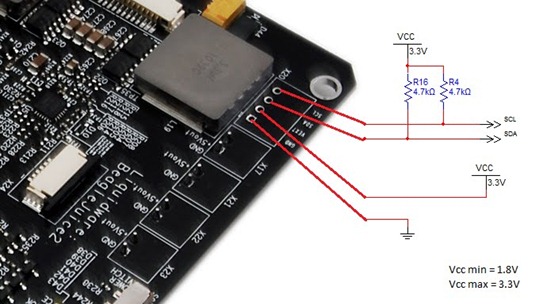
What are the specs on the I2C pins on the BeagleJuice?
The I2C pins (GND, Vext, SDA, and SCL) are exposed for custom headers or wiring. After bugging Chris several times, he decided to just draw me a schematic instead. The range of operation is 1.8V to 3.3V. Currently, there are drivers coded for Android/Linux and OMAP, but it could be hacked to anything that talks I2C.
What else can I power with the BeagleJuice?
The BeagleJuice comes standard with the 2.1mm barrel plug, which works just fine with the 5V barrel jacks on the Arduino, BeagleBoard C5 and xM, PandaBoard, as well as the BeagleBone.
That said, it is in fact just a 2-pin molex connector at the end, so Matt spliced up his own USB micro cable, put some heat-shrink on the tip, and voila! The BeagleJuice now charges anything that takes 5V – my phone, or even the Raspberry Pi (when mine finally arrives!).
What’s with the strips of LEDs?
Aside from the fact that LEDs are always fun, they actually serve a purpose.
The ones on the left are battery charge status indicators, which were inspired by Chris’ Macbook Pro battery meter. (Sorry the picture is a little blurry – I tried to catch it as the lights were moving up!)
There are a couple more “easter eggs” on the BeagleJuice, 2nd Gen – mostly holdovers from things Chris, Mike and I were working on here at the lab. Post your thoughts or guesses to the comments, or just send me a note – justin dot huynh at liquidware dot com
Last week, I took a trip through some of the battery boards and power management systems we created for the Arduino, BeagleBoard and Amber. The development of the 2nd generation BeagleJuice was inspired mostly by requests for a “standalone Amber backpack”.
Sort of…I took a little artistic license with the picture above! The Liquidware Amber power supply and BeagleJuice, 2nd Gen were both built with advanced power management principles in mind.
(Edit: I got a few questions about this - the BeagleJuice, 2nd Gen comes with the standard 5V barrel jack cable to charge any 5V device that fits the jack, like the BeagleBone or PandaBoard. For the adventurous, it's not a huge stretch to wire your own cable to the 2-pin Molex connector...)
The 2nd Generation BeagleJuice is a modern, laptop-grade power supply that implements smart charging technology to manage multiple cells in series to deliver higher charge capacity, as well as high-power output. It’s optimized for 2-cell, 3-cell, and 6-cell configurations to deliver 2800, 4200, or 8400 mAh of capacity.
Onboard LEDs provide multiple status readouts as well as charge information. Advanced features can be accessed over I2C pins directly, or via a Zero Insertion Force (ZIF) ribbon connector. Here at the lab, I’ve used the 2nd Gen BeagleJuice as a primary power supply for several BeagleBoard units concurrently – which centralizes the power management system for remote installation clusters. The high-capacity BeagleJuice provides quad 5V outputs via discrete 2-pin Molex connectors.
I’ll cover some details on charging cycles in the next blog, but in addition to smart charging and power input management, the heavy-duty power supplies that the BeagleJuice is modeled after also focus on being fault tolerant and providing an added measure of battery preservation. This “safety” logic protects the battery from:
over current charge/discharge
over temperature charge/discharge
over voltage charge/discharge
cell charge/discharge imbalances
While no system is perfect, taking these issues into consideration is a big step closer to advanced power management and portable power supplies, useful for hobbyist and embedded prototyping projects with the BeagleBoard alike. Since the BeagleJuice, 2nd Gen comes with 2 5V barrel jacks connectors, it can actually power the PandaBoard and Arduino, as well as my phone with a custom-spliced USB connector. Here’s a quick shot of the new BeagleJuice in action:
This is Part 2 of 3 on portable power management for prototyping embedded systems. The next post will walk through some of the charging algorithms and explain some of the complexity around charge management ICs - justin dot huynh at liquidware dot com
This post came about when we asked Keith about the difference between the battery setups we had, and whether it was possible to pull the Amber battery pack off, and use it for other things. [Cue flashback music…] Lithium Backpack for Arduino
About 4 years ago, we started with the basics of power management: the Lithium Backpack. For that, it was mostly around form factor and simplicity, which was great since the Arduino has both analog and digital capabilities. If it let me take my Arduino project around, I was happy. A single-cell system, it had 4 pins - +5V, +3v3, GND, and Status. Really, the only two that mattered was my positive and my ground. Simple. BeagleJuice for BeagleBoard
So when we started working with the BeagleBoard, we started with the same concept: a “shield” type battery for the BeagleBoard platform. Just a little more heavy-duty, since the BeagleBoard is an embedded computer in its own right, and much like my smartphone, will run out of juice pretty quickly.
Nevertheless, the BeagleJuice idea was simple – single-cell battery, charging, mounting standoffs, USB-mini trickle charge capability, and an on-off switch. That was 2 years ago. Laptop Power Management and the Liquidware Amber
In the meantime, a few projects came along where we really had to wrap our heads around portable power supplies, power management for mobile devices, and the like. Thinking about products with lifecycles of 5 years or more also means that we had to consider things like battery longevity and smart charging cycles.
This was a whole new ball game for us, so we started by taking a look at how consumer laptop batteries are put together. Chris’ old Sony laptop became the sacrificial lamb:
No big surprise – a PCB controller was attached to 6 rechargeable Lithium-ion battery cells. The real fun was in understanding the power management ICs on board, how they communicated with the computer, and what other information was being provided, since the battery pack had quite a few more pins than our original lithium backpack did! One of the big takeaways was that we needed to use some more complex power management units in order to provide the complex battery systems people were used to using with laptops and robust embedded systems. So for the Liquidware Amber, we incorporated laptop power management circuitry, which enabled multiple cells in series to provide higher charge capacity as well as high-power output (the Liquidware Amber battery pack delivers 5V at up to 4A for an extended period of time). What does this mean for functionality? A lot of charge and discharge management algorithms that go on behind the scenes, but also the ability to read out current, temperature, and voltage status to the display – something we take for granted on most modern devices, but actually involves quite a bit more complexity than strapping some rechargeable batteries to a board! This is the first post in a three-part series on portable power management. In the next one, I’ll discuss the specific features and algorithms we considered in building a laptop power management system, and answer Keith’s original question about a standalone Amber battery. Questions, thoughts or projects – email me directly: justin dot huynh at liquidware dot com.


 I couldn’t find a picture of Tom Cruise doing this


.JPG)




 One of the big takeaways was that we needed to use some more complex power management units in order to provide the complex battery systems people were used to using with laptops and robust embedded systems. So for the