Showing posts with label Liquidware. Show all posts

Tuesday, September 4, 2012

How to connect a cellular modem on your Android and BeagleBoard on boot up

Last week, I wrote a tutorial about how to get a 3G/4G cellular modem working on my Android/BeagleBoard setup. The next question (after everything works) is, how can I get this running automatically every time I boot up my Android device?

image
Boot scripts are nothing too fancy, and anyone with some basic Linux or Android experience can navigate this process pretty easily. But I always find it helpful to have the actual scripts written out. As a beginner, it’s a great way to figure out what the commands actually mean, and as an advanced developer, it’s a huge timesaver to copy and paste what’s already been done.

As a quick recap, I'm running all of this off my BeagleBoard xM, BeagleTouch, and Android Ambrosia SD card/image. I decided to use a T-Mobile 4G Rocket 3.0 USB cellular modem, but any USB cellular modem should work, with some tweaks to the vendor/product ID as well as the chat script (more on that in the previous post).

Outline the process

Looking through the original 3G/4G cellular modem integration process, I needed to do 4 things:

1) Get usb_modeswitch and usbserial.ko onto your Android setup

2) Execute usb_modeswitch using the correct usb_modeswitch.conf config file

3) Once modeswitch was successful, install usbserial.ko module to the correct vendor and product ID for the device

4) Execute chat script using pppd command

Wrap up relevant components into a script

I created a file called init_cellular_pppd.sh, which contains the relevant content and commands to create the usb_modeswitch.conf file as well as the dialtest.chat script.

#!/system/bin/sh
#This is a wrapper script to enable cellular wireless
TAG="Cellular"

#
# echo usb modeswitch config
#
echo_modeswitch_conf_zte() {
echo "$TAG building modeswitch config"
cat > /system/etc/usb_modeswitch.conf << EOF

########################################################
# ZTE devices

DefaultVendor=  0x19d2
DefaultProduct= 0x2000
TargetVendor=   0x19d2
TargetProductList="0001,0002,0015,0016,0017,0031,0037,0052,0055,0063,0064,0066,0091,0108,0117,0128,0157,2002,2003"
MessageContent="5553424312345678000000000000061e000000000000000000000000000000"
MessageContent2="5553424312345679000000000000061b000000020000000000000000000000"
MessageContent3="55534243123456702000000080000c85010101180101010101000000000000"

NeedResponse=1
CheckSuccess=20
EOF
}

#
# echo chatscript
#
echo_chatscript_tmobile() {
echo "$TAG building chatscript"
cat > /system/etc/ppp/dialtest.chat << EOF
TIMEOUT 10
ABORT 'BUSY'
ABORT 'NO ANSWER'
ABORT 'ERROR'
SAY 'Starting GPRS connect script\n'

""'ATZ'
SAY 'Setting APN\n'
OK 'AT+CGDCONT=1,"IP","wap.voicestream.com"'

ABORT 'NO CARRIER'
SAY 'Dialing...\n'
OK 'ATD*99***1#'
CONNECT
EOF
}

#
# Switch USB modes
#
switch_usb() {
    echo "$TAG switching USB mode" && \
    usb_modeswitch -I -W -c /system/etc/usb_modeswitch.conf && \
    sleep 5 && \
    echo "$TAG mode switch success" && \
    return 0
}

#
# Start T Mobile firmware
#
start_tmobile() {
    rmmod usbserial
    echo "$TAG tmobile firmware provider"

    echo_modeswitch_conf_zte
    echo_chatscript_tmobile

    switch_usb
    echo "$TAG installing firmware"
    busybox insmod /system/etc/firmware/usbserial.ko vendor=0x19d2 product=0x0157
   
    echo "$TAG starting pppd"
    /system/bin/pppd /dev/ttyUSB1 persist defaultroute usepeerdns -detach crtscts noauth debug connect "/system/xbin/chat -v -s -f /system/etc/ppp/dialtest.chat" &
}


Insert command to run script into Android’s init.rc bootup commands

You’ll find init.rc in the root folder on your Android device.

I placed the init_cellular_pppd.sh script in /system/etc/ppp, though it could technically go anywhere – as long as it’s being called in the right location, and the files it generates are going to the right places as well.

Then I just added these two lines to Android’s init.rc bootup script:

service cellular_up /system/bin/logwrapper /system/xbin/busybox sh -c /system/etc/ppp/init_cellular_pppd.sh
    oneshot


This ensures that I execute init_cellular_pppd.sh every time I boot, which in turn generates the files I need and executes the commands required to have a fully functional 3G/4G cellular connection every time I boot up my Android device, provided I have the modem plugged in.

In my last blog post, I cover which parameters you’ll want to tweak if you’re using a different modem or cellular provider, but if you have any questions or suggestions, I’d love to hear it.

Email me at justin@liquidware.com or follow me on twitter @liquidware

Thursday, August 30, 2012

How to install a 3G/4G cellular modem on my Android BeagleBoard setup

A lot of folks have been asking me about this one, so I figured it’s about time to pull together my notes on the tutorial and get started…

In this case, I used an Android Ultimate Pro Kit, which runs Android 2.3.4 on the BeagleBoard xM/BeagleTouch/BeagleJuice, 2nd Gen.
Note: There’s a much sleeker (beta) way to get cell modems running in Android with the new PPP widget from Draisberghof. I haven’t tried it out yet, and hooking up modems the old-fashioned way helped me learn a few useful tips and tricks in navigating ADB, so I’m writing it all out here. Enjoy!

Hardware I used
1 BeagleBoard xM
1 BeagleTouch
1 BeagleJuice, 2nd Gen (optional – a 5V power supply works fine too)
1 Android Ambrosia SD card
1 Linux or Mac computer (cygwin for Windows could also do the job, with a little bit of toolchain setup. I used a dedicated Ubuntu EeePC)
1 T-mobile Rocket 3.0 4G laptop stick (but most will work – see below)
1 Type B-mini USB cable for connecting the computer to Amber

Software I used
Android SDK with Android Debug Bridge
Linux terminal (Asus Eee PC is *perfect* for this)

This tutorial assumes that you already have Android SDK with Android Debug Bridge set up, and that you’re communicating to the BeagleBoard/Android device from a Terminal program.

Connecting your Android device
1. Switch on your BeagleJuice, 2nd Gen to power on the Android Ultimate Pro Kit.

2. Once the BeagleBoard is booted into Android, plug in a USB cable from the Linux terminal to the BeagleBoard’s OTG type B-mini port.

3. Open up Terminal in Linux.

4. I have the Android SDK and Android Platform Tools installed, so I can access Android Debug Bridge right from the prompt. The first thing I do is make sure my device is connected by typing:

adb devices

A list of connected and available Android devices should come up.

Tools you’ll need on the Android device

Most USB 3G/4G cellular modems are actually several “devices” rolled into one – the most notable being some form of onboard data storage.

USB_ModeSwitch is a fantastic utility that essentially does the heavy lifting of separating all these devices, so we can talk to the modem over USB serial directly.

5. Download and unzip the static binary for ARM processors: usb_modeswitch-1.1.9-arm-static.bz2

From your working directory, push the usb_modeswitch application to /system/xbin/ on your Android device:

adb push usb_modeswitch-1.1.9-arm-static /system/xbin/usb_modeswitch

6. Download the usbserial.ko kernel module from the Liquidware site. The reason I have it set up as a separate module is so that we can install usbserial as the driver for our modem, which is necessary to communicate. Then push usbserial.ko to your Android device:

adb push usbserial.ko usbserial.ko

This will put the usbserial.ko file in the root folder on your Android device, which is fine for our purposes.
We’ll create the usb_modeswitch config file you’ll need later.

Find your modem identification information

7. Go into Android shell:

adb shell

Now you can issue commands as if you’re in a terminal application on the Android device.

8. To see details about attached USB devices, first mount the usbfs file system.

mount -t usbfs usbfs /proc/bus/usb

Now type in:

cat /proc/bus/usb/devices

You should see a list of devices appear. Each USB device will have a Vendor ID and a Product ID. This detailed information also clues you in by telling you what Driver the USB device is currently using.

image

The one I’m looking for is the T-Mobile Rocket 4G, made by ZTE. Three relevant pieces of information:

Vendor=19d2
ProdID=2000
Driver=usb-storage

Each device has a vendor and product code identifier. The Driver is “usb-storage”, meaning that the composite modem is recognized as a USB mass storage device. Not very useful for our purposes. That’s where USB ModeSwitch comes in. You’ll tell USB ModeSwitch to send a special string of characters, which then splits the composite device into 6 independently communicating USB serial devices – one of which is our modem.

Write down your Vendor and Product ID, as well as your Manufacturer, Product, and SerialNumber info. These will all be helpful in finding the correct string that you’ll need to send to the modem via ModeSwitch.

7. In order for USB ModeSwitch to run properly, you’ll need to create USB modeswitch config file in the right format that has the correct string of characters. I started by looking on Draisberghof’s extensive list of device references. For the T-Mobile Rocket 4G 3.0 by ZTE, copy the following text into gedit on your Linux terminal, and create a file called usb_modeswitch.conf

########################################################
# ZTE devices
DefaultVendor=  0x19d2
DefaultProduct= 0x2000
TargetVendor=   0x19d2
TargetProductList="0001,0002,0015,0016,0017,0031,0037,0052,0055,0063,0064,0066,0091,0108,0117,0128,0157,2002,2003"
MessageContent="5553424312345678000000000000061e000000000000000000000000000000"
MessageContent2="5553424312345679000000000000061b000000020000000000000000000000"
MessageContent3="55534243123456702000000080000c85010101180101010101000000000000"
NeedResponse=1
CheckSuccess=20

8. Push usb_modeswitch.conf down to your Android device.

adb push usb_modeswitch.conf /system/xbin/usb_modeswitch.conf

9. There is one additional file you’ll need, which is known as a chat script. It secures the connection with T-Mobile. Open up gedit again and copy the following text, creating a file called dialtest.chat

TIMEOUT 10
ABORT 'BUSY'
ABORT 'NO ANSWER'
ABORT 'ERROR'
SAY 'Starting GPRS connect script\n'
""'ATZ'
SAY 'Setting APN\n'
OK 'AT+CGDCONT=1,"IP","wap.voicestream.com"'
ABORT 'NO CARRIER'
SAY 'Dialing...\n'
OK 'ATD*99***1#'
CONNECT 

10. Push the file down to your Android device:

adb push dialtest.chat dialtest.chat

This will put dialtest.chat into your root directory.

Turn on your 3G/4G cellular modem for Android

image

Now that all the right files are in the right places, we can execute all the commands at once.

11. Plug in your 3G/4G USB cellular modem. It should start blinking

12. Go into shell on your Android device:

adb shell

13. At the Android shell prompt, enter the following:

/system/xbin/usb_modeswitch -I -W -c usb_modeswitch.conf

image

The output will tell me whether the operation was successful, and if it was, you’ll see something like the above screenshot.

14. Notice that the “matching” vendor/product ID is 19d2:0157. We can now install the usbserial kernel directly to that device. Make sure you are in the root directory, since that’s where we put the kernel file. The vendor ID and product ID need to be written in hex.

insmod usbserial.ko vendor=0x19d2 product=0x0157

15. Now check to see what devices are attached to USB at this point:

cat /proc/bus/usb/devices

You should see something like the following:

image

Compare this to the original screenshot, where usb-storage was the only device and driver under this product.

If you’d like, you can check this under the list of serial devices by typing:

ls /dev/tty*

image

If you see ttyUSB0-5, you’re good to go!

16. This part usually takes a little experimenting to figure out which USB device you want to call with the pppd command. This is the correct one. It will execute the dialtest.chat script that you put on the device earlier. (If you’re looking closely, I put my dialtest.chat script in a different folder, but that’s not really a big issue as long as you have the right path)

pppd /dev/ttyUSB1 persist defaultroute usepeerdns -detach crtscts noauth debug connect "/system/xbin/chat -v -s -f dialtest.chat"

image

Be sure to leave this terminal window open to maintain the connection.

The above screen shot shows what happens on a successful initiation of the chat script. You are now ready to go online. ifconfig tells me what my network connections are. Note that ppp0 has an IP address, which means we’re connected to T-Mobile.

ifconfig

image

And the beautiful turquoise beacon, and CNN.com confirms that I’m online!

image

I’m sure there are going to be questions – email me at justin@liquidware.com or find me on twitter @liquidware. Or just comment below, and I’ll get back to you immediately.

Next up after the Labor Day Weekend, I’ll explain how to roll this all up into a boot script, so it can run instantly, every time you power on the Android device.

A big thanks to freedune for an excellent and well-written blog post, which steered me through most of this effort!

Wednesday, August 22, 2012

Introducing the Dual-Core Android 4 Dev Kit for PandaBoard

With dual-core processors and Android 4 (Ice Cream Sandwich, at least) a mainstay of smartphones and tablets, some folks suggested it was about time for the Beagle Embedded Starter Kit and Android Hardware Development Kit to get a big brother…
image
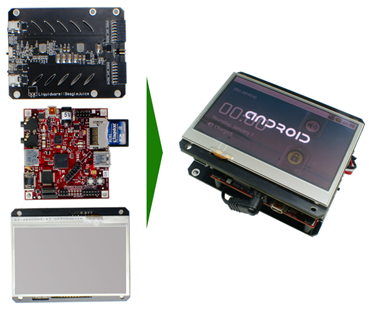
After quite a few months of requests, Chris and I got Android 4 running on the PandaBoard, along with an HDMI adapter board and some drivers to get the PandaBoard a “DIY tablet kit” of its own.
image
image
Just as the name suggests, the Dual-core Android 4 Dev Kit consists of the dual-core OMAP 4430 PandaBoard, Android 4 ICS (with Android serial support), 4.3” touchscreen enabled, powered by a laptop-grade battery pack, so it can be remote mounted, portable, or just permanently charging with a backup power supply.
IMG_0274
The popular 4.3” BeagleTouch OLED display now works with the PandaBoard’s OMAP4430 with the help of a carrier board that conveniently brings the BeagleTouch pinouts to an HDMI connector.
IMG_0280
The other side of the PandaBoard sandwich is the BeagleJuice, 2nd Generation, providing smart, laptop-grade battery and power management capabilities to the PandaBoard’s 5V input jack.
I don’t think that a few extra wires ever frightened any readers of this blog (if anything, there probably aren’t enough random wires on these boards!), but it’s fresh off the lab, so some of these extra wires are going to be solidified as the boards ship.
Either way, I’m pretty pumped about having a portable display + battery setup that works with the PandaBoard, but also one that runs Android 4 (ICS) and takes full advantage of Texas Instrument’s dual-core OMAP4430 processor.
IMG_0276
One of the reasons I decided to make the panel remote mount capable (connected by wires rather than headers) is that the PandaBoard has a bigger footprint than the BeagleBoard, and a remote mount would allow the board and battery to be stored or mounted separately, much like most thin clients.
IMG_0286
Here’s a quick demo I just put together:
I think this would make a cool, totally overkill, touchscreen thermostat that I could shove in my wall, not unlike the Nest (who knew thermostats could be so sexy?), but until next time, post questions, comments and project ideas to comments, justin@liquidware.com, or tweet me @liquidware …image

Monday, August 13, 2012

Recap: "Forever Sensor" at the RI Mini Maker Faire

On Saturday, Rith and I loaded up the car, and took the 30 minute ride down to Providence, RI for the 4th Rhode Island Mini Maker Faire!

During the faire, I had chance to explain the concept of the mystery box, and the rooster call it kept making.  The younger and artistic audience really like the concept of a digital rooster, and the engineers truly appreciated the technical hurdles or the DIY perpetually-powered wireless environmental study project.

At first, the customized Android Tablet, 2 deep cycle marine batteries, the Arduino, the light sensor, the temperature/ humidity sensor, the solar panels and Pelican case seemed like overkill, but once I explained our reasons for the project, a lot of makers started having their own ideas on what they'd do with something like this.
Personally, this was my first time back to the Providence Maker Faire since 2009, but it was a lot of fun, and I can't wait for the Maker Faire in New York!

Thursday, August 9, 2012

How to build a DIY perpetually-powered wireless outpost

Earlier this week, I had a mystery box of electronics and was looking for something to do with it. Thanks to Bryan from New Zealand, who asked about creating a wireless farm monitoring outpost…

The idea of a perpetual power supply comes up now and again, mostly in the context of a remote outpost. Naturally, the idea of creating mesh networks in the wild and digital dead drops appeal to my inner Bourne, but that’s a story for a different day.

image

This project is really broken out into two parts: the perpetual powering, and then doing something useful with the perpetual power.

Perpetual (Self-Replenishing) Power

I found a couple of Mike’s old boat motor batteries, along with some 12V solar panels we had here in the lab. Since the batteries were 24V, I put the solar panels in series. Some back of the envelope math, along with my handy voltmeter, suggested that the solar panels could charge the batteries at about 200 mAH outside in the sun.

For the month of August, here in the Boston area, I get about 13.5 hours of sunlight. That means, each day, I’m storing about +2700 mA per day.

image

Testing the system that I have in the mystery box (which I’ll get to in a second), I’m burning a low of -75 mAH and a high of –150 mAH. It averages out to be about –100 mAH, or –2400 mA per day, for a net of +300 mA per day.

The massive batteries ensure that things will keep going for a while, even if I’m wrong about how much sun is getting through, and if there happens to be an unexpected volcanic cloud over Boston that day.

The Mystery Box (a.k.a. awesome Pelican case o’ stuff)

I put the batteries in the box, along with a BeagleBoard xM, BeagleJuice 2nd Gen, and BeagleTouch, as well as a couple Arduinos to run sensors.

image

Mystery Box

The Pelican case itself is designed to be waterproof, although I hacked the neoprene o-ring in the front to run wires out of a single location. For testing purposes, I have a light sensor hooked up to the Arduino, and I have an AT&T 3G setup running from the BeagleBoard, which is sharing that Internet connection over WiFi to create a wireless hotspot. (If you look carefully at the top, I stuffed a wireless router in there as well)

There are three key links here, which each deserve a separate blog post complete with code:

Light Sensor to Arduino
Arduino with Sensor to BeagleBoard
BeagleBoard to 3G (I’ll write a blog about how to do this as well, but Dune made an excellent post, which got me started)

Towards the bottom, I also included a couple USB-powered speakers…  (Oh the possibilities! :-)

image

Matt helped me dig a hole in the ground to bury the case, and then we ran some of the wires through a PVC contraption we made to mount the solar panels and WiFi antenna. It’s not the neatest thing in the world, but it works.

image

I’ve built a (mostly) perpetually-powered outpost, using a Pelican case, solar panels, some boat batteries, and an Android-powered BeagleBoard setup that converts a 3G cellular connection into a WiFi hotspot, all while logging and uploading sensor data. Now all I need is a coffee maker, and I’ll basically have Starbucks!

Naturally Mike had a brilliant idea for a light sensor and speakers…after all, what farm outpost would be complete without a rooster’s cockadoodledoo every morning. So I present to you, Mike’s Digital Cock app :-)

Next week, I’ll break out each piece of the project into distinct tutorials, especially the 3G cellular modem + BeagleBoard + Android component, which quite a few folks have been asking about.

What would you do with a remote, perpetually-powered wireless outpost? I’m planning to save this one for Halloween to have a robotic, motion-detecting scarecrow…

Post your thoughts to comments, or get a hold of me on twitter @liquidware, or over email at justin.huynh@liquidware.com

Wednesday, August 8, 2012

Powering my Raspberry Pi with the BeagleJuice, 2nd Gen Battery

My Raspberry Pi finally showed up today! Naturally, an unboxing event was in order…

P1020679P1020680P1020681P1020682

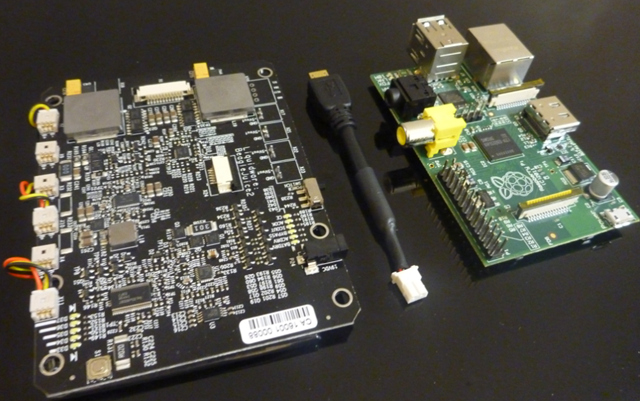
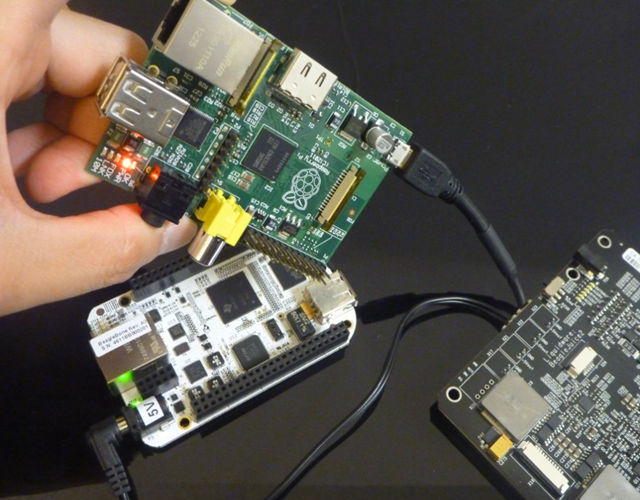
I haven’t gotten around to setting up my SD card yet, but I just wanted to see if it would power on with the BeagleJuice sitting on my desk. In theory, it should work, since the BeagleJuice outputs 5V from each of the 2-pin molex connectors.

image

I took the micro USB cable that I spliced last week and plugged it into the Raspberry Pi…

image

…then I connected the other end to the BeagleJuice.

image

And voila! The Raspberry Pi powers on, as indicated by the red power LED next to the audio jack. Just for kicks, I plugged in the BeagleBone to the BeagleJuice as well (with a 5V barrel jack) to make sure they both run simultaneously, and they do :-)

image

Tuesday, August 7, 2012

What project should I do today?

Chris and I were kicking around a few ideas on excuses to get out of the office and work on some interesting projects while we’re at it. I’ve personally gotten quite a few emails for some cool projects, so we decided to kill two birds with one stone.

As a huge fan of The Ben Heck Show, as well as Ladyada’s Ask an Engineer, I thought some kind of interactive weekly Youtube show might be a fun experiment that could also get some local Boston makers involved as well. It also solves the $1,000,000,000 question (that I wake up to most mornings):

What project should I do today?

The first idea I had is something like an Iron Chef but for electronics and hacking. There’s some set of secret “ingredients” inside a mystery box, and the challenge is to come up with some kind of project we can do with what’s inside.

sshot-79

A twist on this would be to pull a random project suggestion from the virtual mailbag, and then try to make things work with what’s inside. So if there’s a project you’ve been stuck on, just wanted to see built, or you just think would make a good tutorial, post to comments, twitter me @liquidware, or send me an email at justin@liquidware.com

Now it’s time to think of a good title for this show…

Monday, August 6, 2012

How to build a high-tech prototype faster than it takes to build a 30-story hotel

I stumbled across a video recently that I thought was pretty amazing. It’s a time-lapse video of a 30-story hotel that was built in 15 days.

Mind you, this wasn’t a shoddy structure. It’s designed to withstand a 9.0 earthquake, along cutting-edge energy efficiency features. How’d they do it? (The longer story from Businessweek is here)

We make 93 percent of the building in our factory. The basic block, a “main board,” is 3.9 meters by 15.6 meters (12.8 feet by 51.2 feet) and includes everything from water pipes and ventilation shafts down to floor tiles, lights, even toilets and the kitchen sink.

Building blocks. The principles of “prefabrication”, or prefab, for short, have been around for a while now, especially in the realm of architecture and construction. This project just took it to a whole new level. Everything in the building was modularized, trucked out, and assembled. These blocks were strategically unfinished, designed to be connected to other blocks to form the completed structure.

What can hardware and embedded systems design learn from this?

The modular hardware ecosystem has continued to grown, becoming more accessible to an ever-expanding base of developers. With the Arduino, Raspberry Pi, BeagleBone, BeagleBoard, and others, there’s an incredible amount of processing capability out there, in an easy to integrate, easy to program, modular form factor.

image

Prefabbed building blocks exist for the Arduino in the form of shields, BeagleBone in the form of capes, and the BeagleBoard in the form of modules. These all make the integration process extremely low overhead – with hot-swappable operating systems bootable from removable media.

image

David Blaza, Vice President of UBM Electronics (the wonderful folks who bring us the Embedded Systems Conference and EETimes) recapped this growing trend in development. Interestingly, it doesn’t even have to happen in this particular order anymore…and just about anyone can do it:

1) Outline the concept (5-10 hours). A lot of startups, entrepreneurs, hobbyists, and engineers already have this part nailed down really well. Napkin sketches or Visio flowcharts, the concept is something that comes naturally to inventive minds. It’s just useful to whittle down features and ideas to focus the very first prototype.

2) Raise financing – or not (2-3 hours to craft and setup a campaign). This is an optional step these days, but crowdfunding sites Kickstarter and Indiegogo, or peer-to-peer financing sites like Prosper provide an easy, accessible way for individuals to raise money and publicize their projects on the cheap.

3) Pick a hardware platform (3 hours). For me, it’s typically come down to a couple main hardware drivers. If I need analog sensors, I’m probably going to involve an Arduino along the way. Then it’s a question of what screen size (4.3-inch or 7-inch are common) I’ll need, CPU speed, and connectivity. If I know it’s going to be fairly integrated (as all the folks asking for a custom tablet are aware), I’ve usually selected something like the Liquidware Amber.

4) Pick a software platform (3 hours). Linux or Android? Being more open than other operating systems, it’s a little easier to get a stack going and piggyback off code, kernels and drivers that are out there.

5) Buy it (1-3 days). First I usually buy the mainboard (like a BeagleBoard or Pandaboard), along with any complementary modules I’ll need for that platform. It’s worth doing a little planning ahead to buy some spare cables, too, since there’s nothing more frustrating than sitting around with hardware, and not having that USB or HDMI micro cable to test things out.

6) Build it (5 days). Hardware “assembly” should be fairly straightforward, with clear, standardized pinouts (as attested to by the Arduino pin-spacing hullabahoo of late 2009). I find that USB is pretty versatile and ideal for easy connectivity, but that’s the subject of a different post.

If all goes well, assembling the hardware should be a 1-2 hour activity – max! Getting the OS running the way you want it to shouldn’t take too long, but it depends on how customized your kernel has to be.

Then it’s time to develop the app. Bringing out data over serial is a favorite activity (Android Ambrosia tutorial here), as is building a GUI. Adobe AIR is also excellent for simulating application mockups for a presentation.

7) Tell the world (4 hours). Ready for the big screen? Like Step 1, this final step comes naturally to most entrepreneurs – between blogging, emailing well-connected folks, posting to Twitter and Facebook, the evangelizing is usually everyone’s favorite part.

Building a complex prototype has never been easier or more accessible. What’s your experience with modular development? Post thoughts and questions to comments, or just email me at justin dot huynh at liquidware dot com

Friday, August 3, 2012

3 Useful Things to Know about the BeagleJuice, 2nd Gen

I got a few very good questions about the BeagleJuice, 2nd Gen from earlier this week, so I thought I’d answer them in post form.

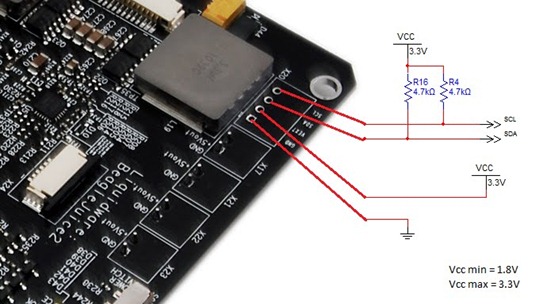
What are the specs on the I2C pins on the BeagleJuice?

The I2C pins (GND, Vext, SDA, and SCL) are exposed for custom headers or wiring. After bugging Chris several times, he decided to just draw me a schematic instead. The range of operation is 1.8V to 3.3V. Currently, there are drivers coded for Android/Linux and OMAP, but it could be hacked to anything that talks I2C.

BeagleJuice2 I2C Diagram

What else can I power with the BeagleJuice?

The BeagleJuice comes standard with the 2.1mm barrel plug, which works just fine with the 5V barrel jacks on the Arduino, BeagleBoard C5 and xM, PandaBoard, as well as the BeagleBone.

image

That said, it is in fact just a 2-pin molex connector at the end, so Matt spliced up his own USB micro cable, put some heat-shrink on the tip, and voila! The BeagleJuice now charges anything that takes 5V – my phone, or even the Raspberry Pi (when mine finally arrives!).

What’s with the strips of LEDs?

Aside from the fact that LEDs are always fun, they actually serve a purpose.

image

The ones on the left are battery charge status indicators, which were inspired by Chris’ Macbook Pro battery meter. (Sorry the picture is a little blurry – I tried to catch it as the lights were moving up!)

imageimage

There are a couple more “easter eggs” on the BeagleJuice, 2nd Gen – mostly holdovers from things Chris, Mike and I were working on here at the lab. Post your thoughts or guesses to the comments, or just send me a note – justin dot huynh at liquidware dot com

Monday, July 30, 2012

Introducing the BeagleJuice, 2nd Generation: Laptop-Grade Power Management for the BeagleBoard

Last week, I took a trip through some of the battery boards and power management systems we created for the Arduino, BeagleBoard and Amber. The development of the 2nd generation BeagleJuice was inspired mostly by requests for a “standalone Amber backpack”.
image
Sort of…I took a little artistic license with the picture above! The Liquidware Amber power supply and BeagleJuice, 2nd Gen were both built with advanced power management principles in mind.

(Edit: I got a few questions about this - the BeagleJuice, 2nd Gen comes with the standard 5V barrel jack cable to charge any 5V device that fits the jack, like the BeagleBone or PandaBoard. For the adventurous, it's not a huge stretch to wire your own cable to the 2-pin Molex connector...)

The 2nd Generation BeagleJuice is a modern, laptop-grade power supply that implements smart charging technology to manage multiple cells in series to deliver higher charge capacity, as well as high-power output. It’s optimized for 2-cell, 3-cell, and 6-cell configurations to deliver 2800, 4200, or 8400 mAh of capacity.
image
Onboard LEDs provide multiple status readouts as well as charge information. Advanced features can be accessed over I2C pins directly, or via a Zero Insertion Force (ZIF) ribbon connector. Here at the lab, I’ve used the 2nd Gen BeagleJuice as a primary power supply for several BeagleBoard units concurrently – which centralizes the power management system for remote installation clusters. The high-capacity BeagleJuice provides quad 5V outputs via discrete 2-pin Molex connectors.
image
I’ll cover some details on charging cycles in the next blog, but in addition to smart charging and power input management, the heavy-duty power supplies that the BeagleJuice is modeled after also focus on being fault tolerant and providing an added measure of battery preservation. This “safety” logic protects the battery from:
  • over current charge/discharge
  • over temperature charge/discharge
  • over voltage charge/discharge
  • cell charge/discharge imbalances
While no system is perfect, taking these issues into consideration is a big step closer to advanced power management and portable power supplies, useful for hobbyist and embedded prototyping projects with the BeagleBoard alike. Since the BeagleJuice, 2nd Gen comes with 2 5V barrel jacks connectors, it can actually power the PandaBoard and Arduino, as well as my phone with a custom-spliced USB connector. Here’s a quick shot of the new BeagleJuice in action:
This is Part 2 of 3 on portable power management for prototyping embedded systems. The next post will walk through some of the charging algorithms and explain some of the complexity around charge management ICs - justin dot huynh at liquidware dot com

Friday, July 27, 2012

3 Portable Power Management Systems For Development and Prototyping

This post came about when we  asked Keith about the difference between the battery setups we had, and whether it was possible to pull the Amber battery pack off, and use it for other things. [Cue flashback music…]
Lithium Backpack for Arduino
About 4 years ago, we started with the basics of power management: the Lithium Backpack. For that, it was mostly around form factor and simplicity, which was great since the Arduino has both analog and digital capabilities. If it let me take my Arduino project around, I was happy. A single-cell system, it had 4 pins - +5V, +3v3, GND, and Status. Really, the only two that mattered was my positive and my ground. Simple.

BeagleJuice for BeagleBoard
So when we started working with the BeagleBoard, we started with the same concept: a “shield” type battery for the BeagleBoard platform. Just a little more heavy-duty, since the BeagleBoard is an embedded computer in its own right, and much like my smartphone, will run out of juice pretty quickly.

Nevertheless, the BeagleJuice idea was simple – single-cell battery, charging, mounting standoffs, USB-mini trickle charge capability, and an on-off switch. That was 2 years ago.
Laptop Power Management and the Liquidware Amber
In the meantime, a few projects came along where we really had to wrap our heads around portable power supplies, power management for mobile devices, and the like. Thinking about products with lifecycles of 5 years or more also means that we had to consider things like battery longevity and smart charging cycles.
This was a whole new ball game for us, so we started by taking a look at how consumer laptop batteries are put together. Chris’ old Sony laptop became the sacrificial lamb:

CIMG9938CIMG9936image
No big surprise – a PCB controller was attached to 6 rechargeable Lithium-ion battery cells. The real fun was in understanding the power management ICs on board, how they communicated with the computer, and what other information was being provided, since the battery pack had quite a few more pins than our original lithium backpack did!
One of the big takeaways was that we needed to use some more complex power management units in order to provide the complex battery systems people were used to using with laptops and robust embedded systems. So for the Liquidware Amber, we incorporated laptop power management circuitry, which enabled multiple cells in series to provide higher charge capacity as well as high-power output (the Liquidware Amber battery pack delivers 5V at up to 4A for an extended period of time). What does this mean for functionality? A lot of charge and discharge management algorithms that go on behind the scenes, but also the ability to read out current, temperature, and voltage status to the display – something we take for granted on most modern devices, but actually involves quite a bit more complexity than strapping some rechargeable batteries to a board!
This is the first post in a three-part series on portable power management. In the next one, I’ll discuss the specific features and algorithms we considered in building a laptop power management system, and answer Keith’s original question about a standalone Amber battery. Questions, thoughts or projects – email me directly: justin dot huynh at liquidware dot com.